FOR SOCIAL VIDEO
Paste a transcript once. CaptionCraft shapes it into text matched to TikTok, Shorts, Reels, LinkedIn, and Facebook — each platform's conventions applied automatically. Edit, copy, and come back. Your captions stay saved in your browser.
Try it now →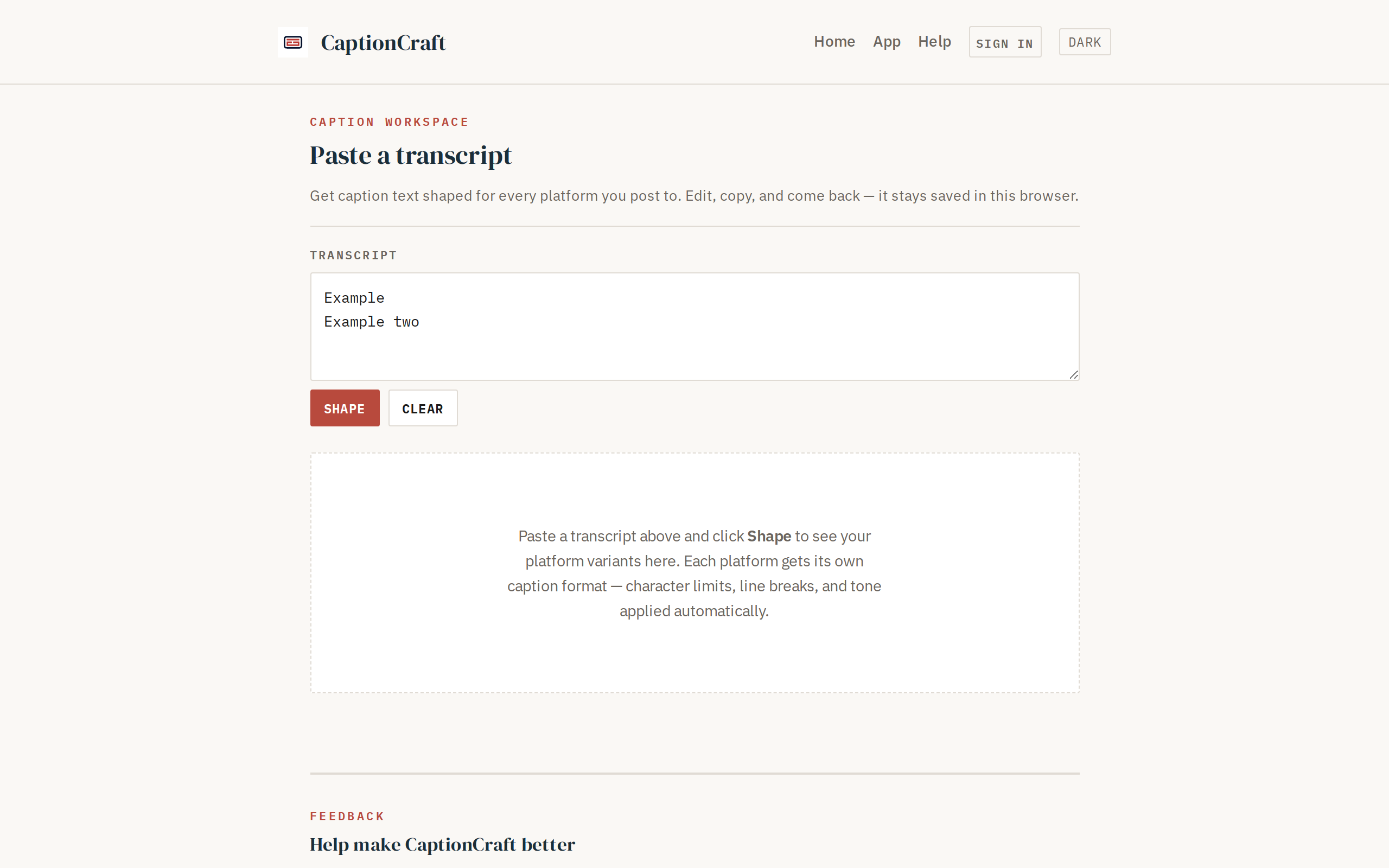
01 / HOW IT WORKS
Copy the text from your video editor, speech-to-text output, or notes. One transcript — your source of truth.
CaptionCraft shapes the same words for TikTok, Shorts, Reels, LinkedIn, and Facebook — each platform's conventions applied automatically. See them all at once.
Tweak any variant to fit your voice. Copy it with one click. It stays saved for next time — no rewriting from scratch.
02 / WHAT IT SHAPES
Each platform has its own caption conventions — character limits, line breaks, tone. CaptionCraft applies them so you don't have to remember every rule.
Short, punchy lines — typically 150 characters. Optimised for speed-readers and on-screen overlay.
Compact but descriptive — 250 characters. Room for context without losing the scroll-stop.
Conversational and tight — 200 characters. Matches the casual, authentic tone of Reels audiences.
Full paragraph — 700 characters. Professional tone, hashtags, and space for a real story.
Engagement-optimised — 400 characters. Front-loads the hook, leaves room for discussion.
03 / THE FLOW
From a single source to every platform you post on — the route your transcript takes.
Your transcript is shaped for each platform, saved for later, and ready to copy in seconds.
04 / WHAT IT WILL NOT DO
CaptionCraft shapes text — it does not generate, post, or manage video. Here is what it does not do, so you know before you invest time.
05 / THE COST
There are no plans, tiers, upgrades, or hidden limits. Every feature described on this page is available to everyone, today.
No account required to try it. All platform variants included. Saved captions stay in your browser. Sign-in for cross-device persistence is ready — uses the fleet auth host; captions fall back to local storage when it is not reachable.
06 / FAIR QUESTION
The honest comparison — because the free alternatives are real and should be answered.
If you already have a template with columns for each platform and you remember to fill every one, a spreadsheet works fine. CaptionCraft removes the repetition: paste once, read the variants, tweak and copy. No columns to manage, no forgetting which platform you already wrote for, no reformatting when a platform changes its limits. If a spreadsheet is working for you, keep using it. If the repetition grates, this is faster.
OpusClip, CapCut, and Captions AI generate animated captions directly on your video. That is a different product. CaptionCraft is for the text layer — the written caption that goes in the description, the post, the comments. If you need on-video animated captions, those tools are better. If you need the written caption shaped for each platform's text area, this is where you land.
A Notion template with platform columns solves the same problem with none of the setup. But it does not apply platform formatting rules automatically — character limits, line length, tone guidance — all of which are conventions that change and vary by platform. CaptionCraft applies those rules so you do not have to remember them, and it keeps the variants visible together for comparison. A Notion template is a fine alternative; this is a specialised one.
SOMETHING TO TAKE WITH YOU
No account, no download, no video upload. Just the text tool for the text part of your workflow.
Open CaptionCraft → CaptionCraft